
Scanning a QR code does not infect your phone. The camera reads a pattern and shows you some text. What can hurt you is what you do next: open a fake login page, pay the wrong account, type a code into a form that is not what it says.
Scammers know that people trust a QR code more than a link in an email. It is a good habit to pause for about three seconds before the tap. This is the routine.
The three-second check
1. Where did the code come from? A code on a printed menu in a place you are sitting is one thing. A code on a letter you did not expect, an email about a parcel, or a sticker on a parking meter is another. Stickers on top of an original code are a real trick: run a finger over the code, and if it peels, do not scan.
2. Read the address it wants to open. The iPhone Camera shows the site name in a banner before you tap it. Read the domain, the part before the first / after https://; the real owner is the name just before the ending, plus the ending (in login.bank.example, it is bank.example; the part in front is only a label). Check that it matches who is asking. A bank’s code should open the bank’s own domain, not bank-secure-login.example.
3. Look for the usual tells in the address:
- Misspellings or extra words (
paypa1,parking-pay-now). - A shortened link (
bit.ly,tinyurl) where you cannot see the destination, in a place a company would use its own name. - An address that starts with a familiar name but ends somewhere else. The part that counts is just before the first single
/that follows the domain ending. - A page that wants your card, password or a “verification” code the moment it opens.
4. Do not enter a password or payment on a page a code took you to, if it is anything you care about. Open the company’s real site or app by yourself instead.
Where codes are riskiest
- Parking and payment. Fake stickers on parking meters are a known scam, as the FTC warns, and the same trick works on any public payment sign. If the sign has a website or a phone number, use those, or the official app.
- Unexpected mail, texts and emails that say you owe money, a parcel is held, or an account is locked.
- Anything that asks you to install an app or a profile from the page. Get apps only from the App Store.
- Codes for sending crypto. A payment cannot be undone. Check the address character by character.
What a QR code can and cannot do
A code is just text. It can hold a link, a phone number, a Wi-Fi login, a calendar event, a contact, a pre-written message. Your iPhone usually asks you before it acts on them, such as joining a network or adding a contact. Say yes only to what you recognise.
A code is only data; on an iPhone, nothing runs unless you confirm an action. The risk is always the action you confirm, the page you load, or the details you type in.
Keep a record of what you scanned
If something goes wrong, you will want to know exactly which code you scanned and when. The Camera app does not keep a list.
A scanner with a history does. QR Kit saves every scan to a list on your iPhone with its type, the date, and the address shown under its name, so you can look back at the website a code sent you to, search it, and star the ones you trust. It names what it found (LINK, WI-FI, PAYMENT, and so on) on a result screen, and you choose the action yourself. It does not rate links or tell you a site is safe, so the checks above still apply.
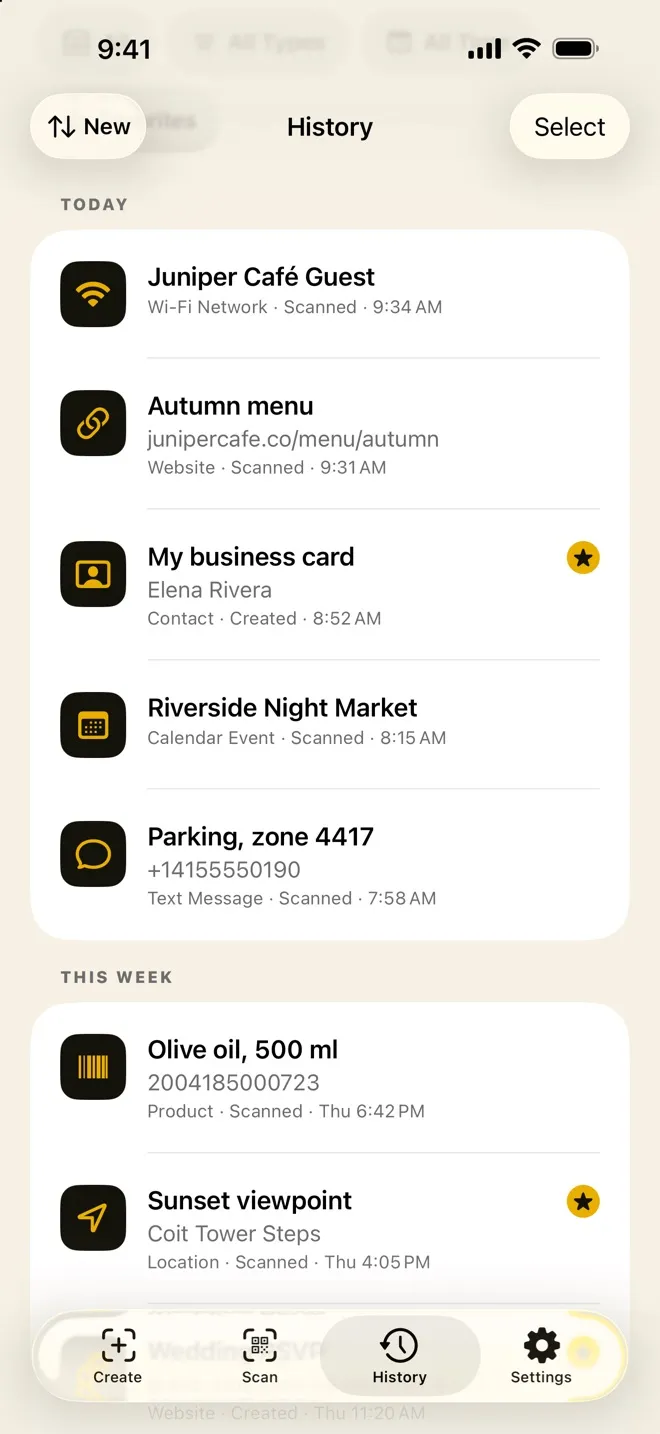
On the free plan, the app keeps your 3 newest codes visible and holds the older history until you upgrade to Pro. Everything stays on your device, with no account, and the scanner and history work offline.
If you already scanned something suspicious
- Close the page and do not enter anything.
- If you typed a password, change it on the real site, and anywhere you reused it.
- If you paid or gave card details, call your bank and say so.
- Report the scam to the organisation it pretended to be, and to your local consumer authority.
You do not have to be afraid of QR codes. A moment of looking at where one is going will cover most of the risk.


