
A modern iPhone works hard to make every photo bright, sharp and evenly lit. Film did none of that, and the things it got “wrong” are exactly what people miss: a little grain, highlights that fade gently instead of clipping, colour with a mood, and softer edges.
You can get most of the way there with what is already on your phone. Here is what to change, in the order that matters.
Know what you are copying
You do not need every trait. Two or three, applied lightly, read as film:
- Grain. A fine, irregular texture. It should be visible at normal viewing size but not shout.
- Soft highlights. Skies and lamps roll off to white instead of looking digitally crisp.
- Colour with a mood. Warm skin and creamy whites, or slightly muted greens.
- Less sharpness. Film edges are softer than a phone’s processed detail.
- Direct flash. The bright-faces, dark-background look of a point-and-shoot at night.
Choose the look before you shoot
The easiest film look is the one you pick before the shutter, because every photo then comes out the same way. On supported iPhones, open Camera, swipe up from the modes, tap Styles and swipe through them. Choose something warm and soft, then lower the tone a little for gentler contrast. Apple’s guide to Photographic Styles lists which models support it. Older phones can use the Filter option in the same menu instead.
Then change how you shoot, which matters as much as any edit:
- Stay on the 1x lens. A cheap film camera had one fixed lens, so step closer instead of zooming.
- Turn the flash on in dim rooms and let the picture be a little too honest.
- Take one frame of a moment, not fifteen. Film made you choose.
- Shoot in directional light: late afternoon, a window, a single lamp. No grain makes flat midday light interesting.
Give an existing photo a film look in Photos
Open a photo, tap Edit, then Adjust. A starting recipe, to tune by eye (slider names shift a little between iOS versions):
- Highlights down, so bright areas soften.
- Contrast down a little.
- Black Point down a touch, so the darkest parts look faded rather than inky.
- Warmth up slightly.
- Sharpness and Definition down, to take the digital edge off.
- A small Vignette.
Doing a whole set? Edit one photo, choose Copy Edits, then Paste Edits onto the rest.
The mistakes that give it away
- Too much fade. Lifting the blacks a lot turns a photo grey, not vintage.
- Too much grain. Dark phone photos already carry noise, and heavy grain on top hides faces.
- A different look on every photo. Film from one roll looks consistent from the first frame to the last. Pick one look for a trip or an evening and stay with it.
That last point is the one most editing misses, and it is the idea Film Camera is built around.
One roll, one look
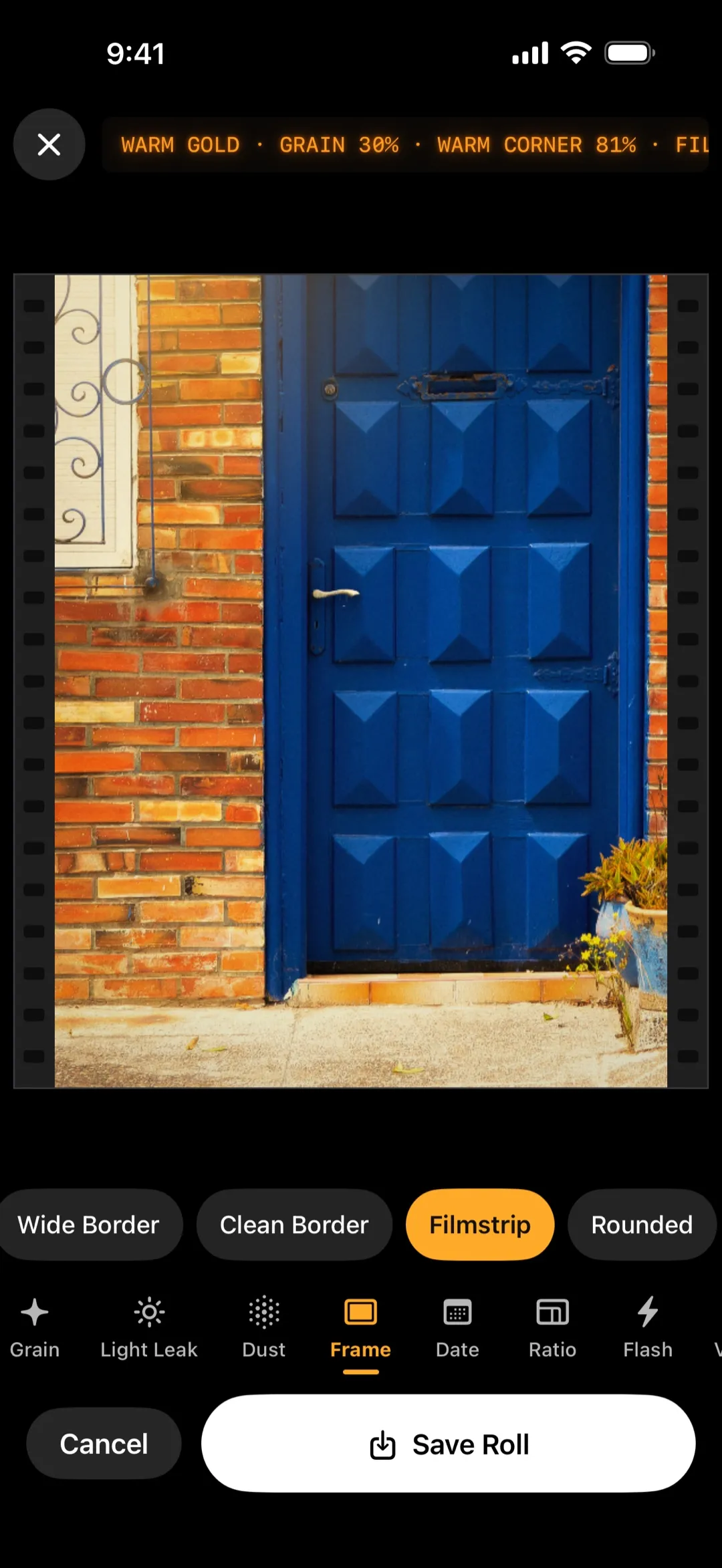
Film Camera for iPhone does not give you a filter to apply afterwards. You pick a roll first. Each roll has its own recipe, covering the film stock, grain, light leaks and frame, and every photo you take on it shares that look. The effect is live in the viewfinder, so you see the result before you press the shutter.
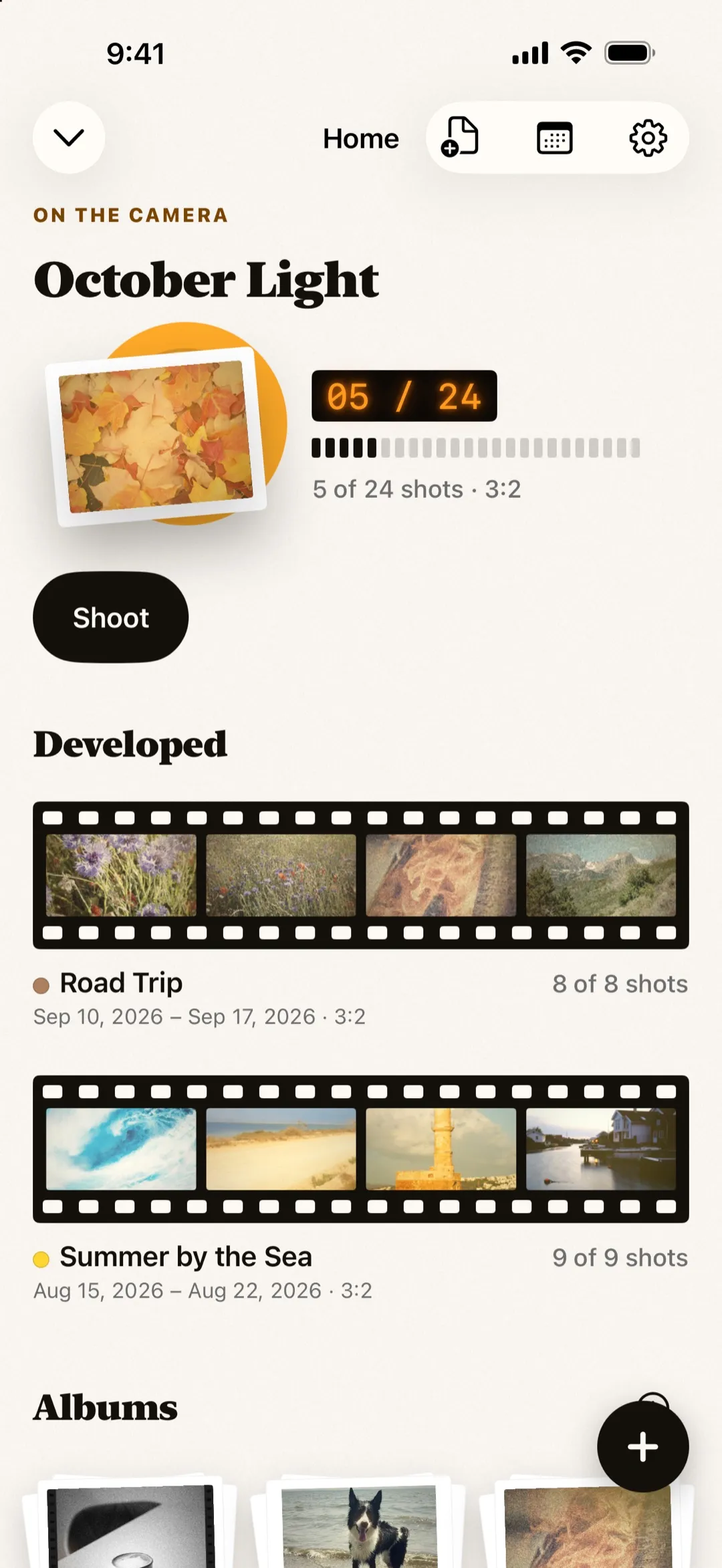
When a roll is full, it is “developed” and laid out as a contact sheet, so a trip ends up as a finished set instead of a pile of camera roll entries.
Free includes three complete looks (Golden Hour, Noir and Polaroid). Pro adds the other film stocks and frames, the full recipe editor to mix your own (the app counts 26 film stocks, 16 light leaks and 11 frames), unlimited custom rolls and albums, backup and widgets, as a monthly, annual or lifetime purchase. You can preview every Pro look live in the viewfinder before you decide.
If you already have photos you like, share one from the Photos app to Film Camera and it joins your current roll with that roll’s film look.
Everything runs on the device. There is no account, no ads and no tracking, and your photos stay on your phone.
A quick way to try this today
- Pick one look for the day: a Photographic Style, or a roll in Film Camera.
- Shoot at 1x and take fewer, more deliberate frames.
- Resist adjusting each photo separately.
If, at the end of the day, the set looks like it belongs together, you have the film look.


