
Every host has had the moment. A friend sits down, asks for the Wi-Fi, and you read out a password with capital letters, a zero that is not an O and an underscore. Then they type it wrong twice.
A Wi-Fi QR code fixes that. The guest points their phone at it, taps once, and they are on the network. You print it, stick it on the fridge or the shop counter, and you never read the password aloud again.
What is inside a Wi-Fi QR code
It is only text, in a format phones agree on. For a network called HomeNet with the password purple-kettle-42 it looks like this:
WIFI:T:WPA;S:HomeNet;P:purple-kettle-42;;The parts:
- T is the security type:
WPAfor WPA, WPA2 and WPA3 (almost every home router),WEPfor very old equipment,nopassfor an open network. - S is the exact network name, capitals and spaces included.
- P is the password.
- H:true is added only if the network is hidden and does not broadcast its name.
If the name or password contains one of \ ; , : ", put a backslash in front of that character, or the code will break at that point. This is the single most common reason a home-made code fails.
The iPhone Camera, and the camera on recent Android phones, recognise this format and offer to join the network. You do not need an app on the guest’s side.
Check the details before you print
- Copy the name from your router or from Settings.
Home-NetandHomeNetare different networks, and so arelandI. - Use WPA for a normal home network. A WPA password has 8 to 63 characters. Pick WEP only for old equipment that supports nothing else, and “None” only if you really want an open network.
- Mind the password’s special characters (see the backslash rule above).
- Test it with a phone that is not yours, off the Wi-Fi, before you print a stack of cards.
A word on privacy
A Wi-Fi code contains your password in plain form. Anyone who can see the code can read it with any scanner, so put it where only people you would give the password to can see it. A kitchen fridge is fine. A window facing the street is not.
For the same reason, think twice before you type your real password into a website that makes the code for you. You are handing the password to a stranger’s server. A generator that works on your phone, offline, avoids that. Better still, put your guests on a separate guest network if your router has one, and make the code for that one.
Print it so it scans
- Keep it at least 2 cm (about an inch) wide, bigger for a counter or a wall.
- Leave a plain margin around it.
- Dark code on a light background scans best, and the plain black-on-white is the safest. A very low-contrast or heavily decorated design can fail on an old phone.
- Add a line of plain text next to it, “Scan to join the Wi-Fi”, and the network name in words, for the one guest with an old phone.
Making one in QR Kit
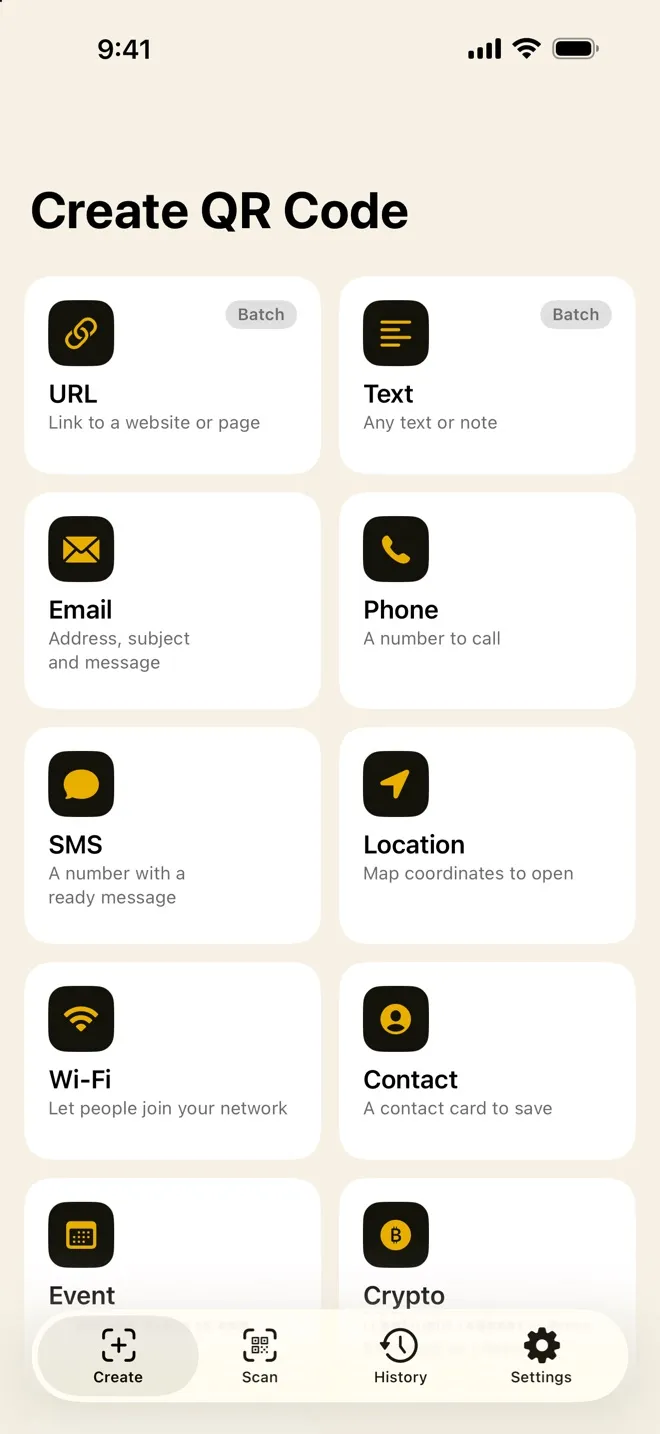
QR Kit is a scanner and code maker for iPhone, and Wi-Fi is one of its code types. Making a Wi-Fi code is a Pro feature: free covers the scanner and four simple types (URL, text, email, phone). So you know before you start.
Open Create, tap Wi-Fi, and fill in the network name, the security and the password. The form has a Show password switch, a Hidden network switch, and short notes under each security option, and it tells you when a WPA password is outside the 8 to 63 characters or a name is too long. The finished code is saved to your history on the phone, and you can share it or save the image to Photos.
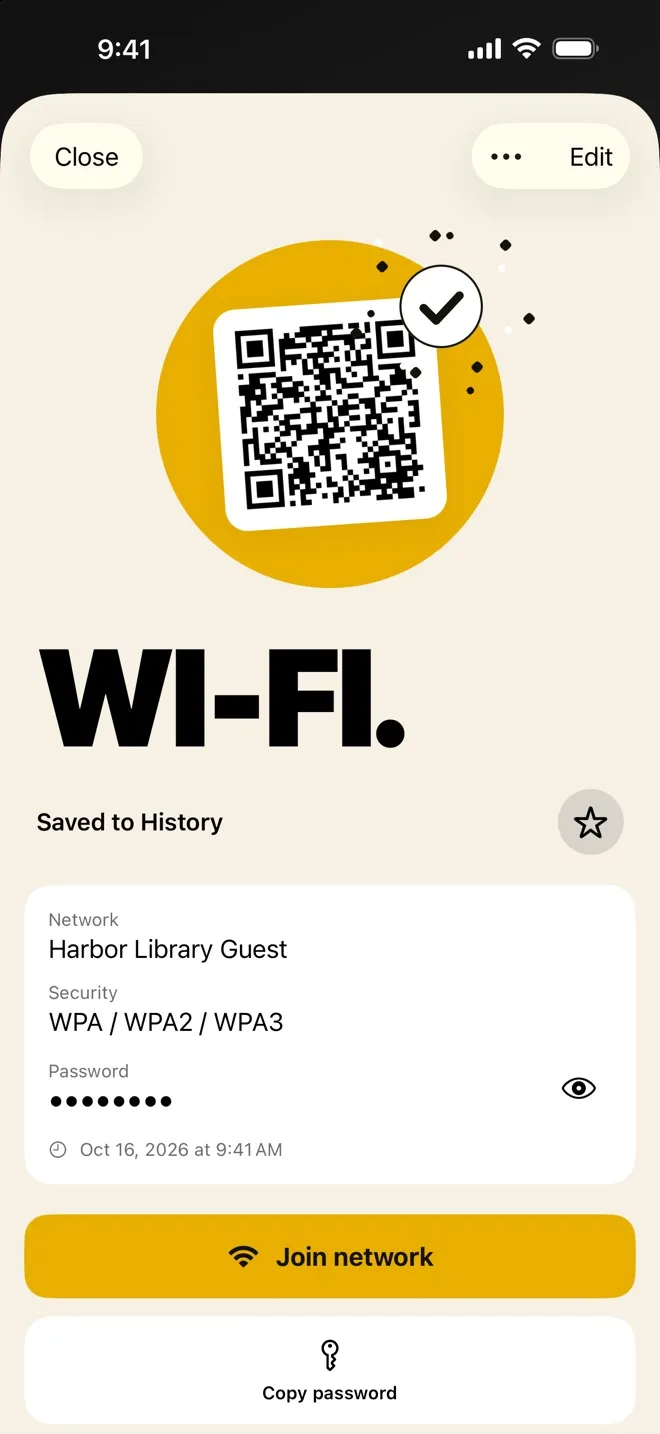
QR Kit also reads codes. When you scan a Wi-Fi code, the result sheet shows the network, the security and the password hidden behind an eye icon, with Join network and Copy password below, and Close, Edit and Saved to History controls.
Two details that are true and worth knowing: the code is made on your iPhone with no account, and a code with a design (your colours, a frame, a Wi-Fi symbol in the middle) is checked to still scan before you save it. Custom design is also part of Pro.
If it still will not join
- The phone may be too far to focus. Move closer and fill the frame.
- Enterprise networks (the kind with a username) cannot be joined from a code. Share the password a different way.
- A code with a wrong password usually still shows a “Join” prompt, then fails to connect. Re-check the code text against the router.
- A hidden network needs the hidden flag set, or the phone will not find it.
A good Wi-Fi code is a small kindness: it takes a minute to make and saves the same minute every time someone visits.


