
You have a photo of a door, a sweater or a sunset, and you want that exact color as a code: for a slide, a website, a paint shop, a knitting project. Hex codes like #E23B1D are how most tools name a color, so the question is how to get one from a picture.
Here is what works on an iPhone, and what to watch for so the code you copy is the color you meant.
What a hex code actually is
A hex code is three numbers written in base 16: how much red, green and blue to mix, from 00 (none) to FF (full). #E23B1D is a lot of red, some green, little blue: a tomato red.
You will meet the same color written other ways:
- RGB: the same three numbers in plain decimals,
rgb(226, 59, 29). - HSL: hue (the position on the color wheel), saturation (how vivid) and lightness. This one is easier to adjust by hand: “same color, a bit lighter” is a single number.
They describe one color, so use whichever the place you paste into asks for.
Option 1: use the system color picker
Many apps that let you choose a color, including Markup in Photos, show Apple’s color picker. It has an eyedropper that samples a color from what is on screen, and its slider view can show the value as a hex code. It is fine for a one-off, but it depends on the app you are in, and what you get is a single sampled pixel.
Option 2: a web or desktop eyedropper
Send the photo to a computer and use the eyedropper in a design tool or an online picker. This gives you precise control, but it is a lot of steps for a quick answer.
Option 3: an app that reads colors from a photo
An app built for color will pull several colors at once and let you copy them. This is where Color Hunt can help. In Color Hunt you open a photo, tap the palette icon, and it pulls the photo’s five main colors. Each shows its hex, and tapping a swatch copies it. You can also copy the whole set as a snippet in HEX, RGB or HSL.
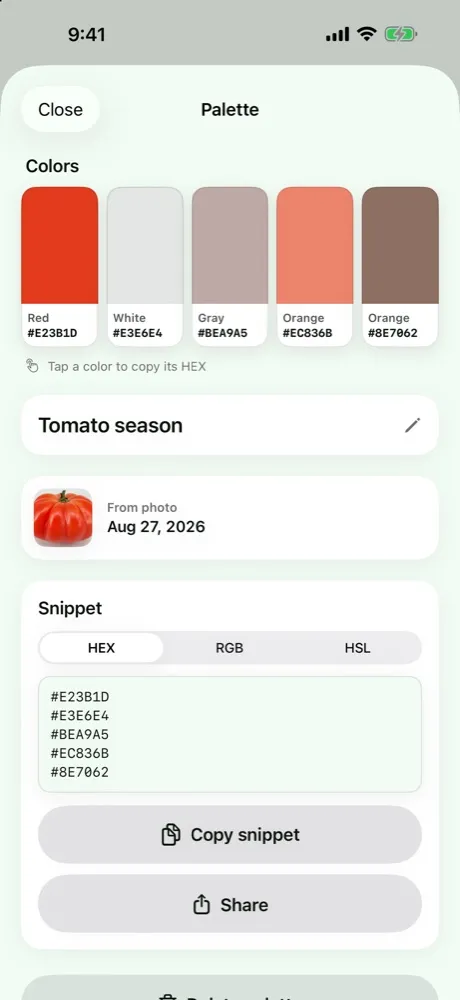
What is free and what is not, so you are not surprised:
- Copying a color’s hex, or the whole snippet, is free.
- Free keeps up to two saved palettes, and brings in one photo from your library a week. Pro lifts both limits.
- Hunting any color with the live camera, and not only the day’s challenge color, is part of Pro.
Colors are worked out on your device. There is no account, and nothing is uploaded.
Four traps when you read a color from a photo
1. The photo is not the object. A camera adjusts for light. A white shirt in warm indoor light photographs yellowish, and the hex will say so. If the color matters, shoot in daylight, not in direct sun, and take it near a white or gray reference.
2. One pixel lies. A single pixel can be a speck of noise, a highlight or a shadow. A good eyedropper averages a small area; if yours does not, sample three places and compare.
3. Highlights and shadows are not the color. A red apple has a bright spot and a dark side, and neither is “apple red”. Pick from the evenly lit middle.
4. Screens differ. The hex you read is the same everywhere, but it will look slightly different on another display. For paint, take the code to the shop as a starting point and compare against a real swatch.
Using the hex you copied
- Design tools and slides: paste it into the color field.
- Websites and CSS:
#E23B1D, orrgb(226, 59, 29). - Paint: shops match from a sample, so bring the photo and a chip as well as the code.
- Notes for later: keep the five-color set with a name so you can find it again.
A quick way to practise
Pick a photo you like and ask: which of its five colors is the one I would use for text, which for a background, which for an accent? Looking at a picture as a handful of colors with jobs is the habit behind most palettes.


