
When you start a hand-drawn animation, one of the first questions is how fast it should play. The answer decides how many drawings you need, and so how much work you are signing up for.
The short answer
Twelve drawings per second is the common practical standard for hand-drawn animation. It is smooth enough for most movement, and it is a number you can actually draw. Many animation guides use it as their default, and so do many drawing apps.
Cinema plays 24 frames a second. Hand-drawn films often draw only 12 different pictures per second and show each one twice, which is called animating “on twos”. You get most of the smoothness for half the drawings.
What frames per second really means
FPS is the number of different drawings shown in one second. It is speed and smoothness at once:
- At 12 FPS, a 3-second animation is 36 drawings.
- At 8 FPS, it is 24 drawings, with a chunkier, more deliberate look.
- At 24 FPS, it is 72 drawings and very smooth.
A low frame rate is not a mistake. A rate of 4 to 8 FPS gives a lively stop-motion feel that many people want. A higher rate costs more drawings for the same length.
How to choose
Match the rate to the job:
- A first loop: 8 to 12 FPS, with 8 to 12 frames in total.
- A bouncing or fast action: 12 FPS, so the motion reads as fluid.
- A slow, graceful move: keep 12 FPS and add more in-betweens, rather than slowing the rate. Dropping the rate only makes it look choppy.
- A deliberate, handmade look: 6 to 8 FPS.
If you are unsure, start at 12. You can change the speed later and see right away how it feels.
Plan before you draw
- Decide the length of the loop in seconds.
- Multiply by your frame rate to get the number of drawings.
- Draw the key frames, the extremes of the motion, first.
- Fill in the in-betweens, using a ghost of the previous drawing to space them.
Say you want a one-second loop of a ball bouncing at 12 FPS. That is 12 drawings: a handful of key poses, then about eight in-betweens.
The mistakes to avoid
- Too many frames for the movement. Not every part needs a new drawing at every step.
- Changing everything every frame. Animate the part that moves and copy the rest forward.
- Judging a loop from stills. Play it. Small jumps only show in motion.
Doing it in Flipbook
In Flipbook for iPhone and iPad you set the speed with a single FPS control between 1 and 24, right above the frame strip, and you can change it whenever you like.
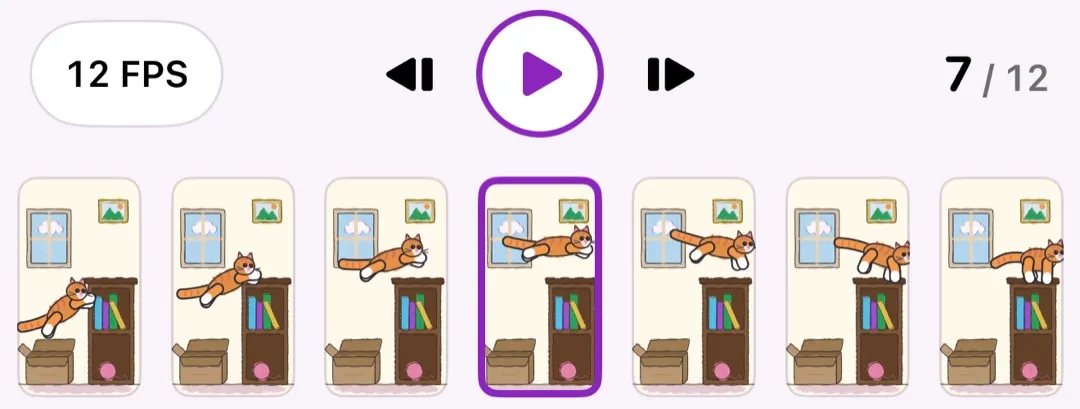
That makes it easy to find the rate by eye: draw a few frames, play them at 12, then at 8, and keep the one that feels right. Duplicating a frame and adjusting it is a quick way to build in-betweens, and onion skin shows the previous drawing underneath so spacing stays even.
Free lets you draw, preview and export a GIF. Pro lifts the limits on frames and projects and adds larger canvases, MP4 and PDF export and reference images. The frame and project limits differ between Free and Pro, so check the current numbers on the store page.
Flipbook works offline with no account, no ads and no tracking, so you can test a frame rate in a spare five minutes.
A rule of thumb
Start at 12 FPS, aim for the fewest drawings that tell the story, and play the loop early. If it feels too choppy, add in-betweens. If it feels too slow, raise the speed. Both fixes are small once you can see it moving.


