
You take six pictures of a sunset and keep all of them. Multiply that by a few years and the library is full of almost-the-same photos. Cleaning them is not hard, but it is easy to do it badly: deleting the wrong one, or being unsure whether anything can be brought back.
Start with what the iPhone gives you
Two built-in tools cover most of it.
- Duplicates. In the Photos app, scroll to Utilities in Albums and open Duplicates. It lists photos that are exact or very close copies and offers a Merge button, which keeps the best version and moves the rest to Recently Deleted. Not every iPhone shows this album: it appears when copies are found.
- Burst photos. Hold the shutter in Camera and a burst is saved as one stack. Open it, choose Select, mark the frames you want to keep, and the rest can go.
Neither of these catches the common case: several separate shots of the same moment, taken a second apart, that are not identical. That one you have to judge by eye.
A way to choose without second-guessing
Looking at a grid of thumbnails is where people give up, because everything looks the same at that size. What works better is seeing one photo at a time, large, and making a quick call.
- Open the month where the clutter is.
- Go through photos one by one at full size and decide keep or delete.
- For a group of near-identical shots, put two side by side and keep the sharper one, the one with open eyes.
- Delete in one pass at the end, not as you go, so you can change your mind.
Deleting is not final for 30 days
Whatever you use, deleted photos go to Recently Deleted in Photos, where Apple keeps them for 30 days. If you delete something by mistake, open that album, pick it and tap Recover. After 30 days it is gone, and that includes any iCloud copies if you use iCloud Photos.
Swipe to tidy in Photo Feed
Photo Feed has this routine built in as Swipe to tidy, and it is a Pro feature.
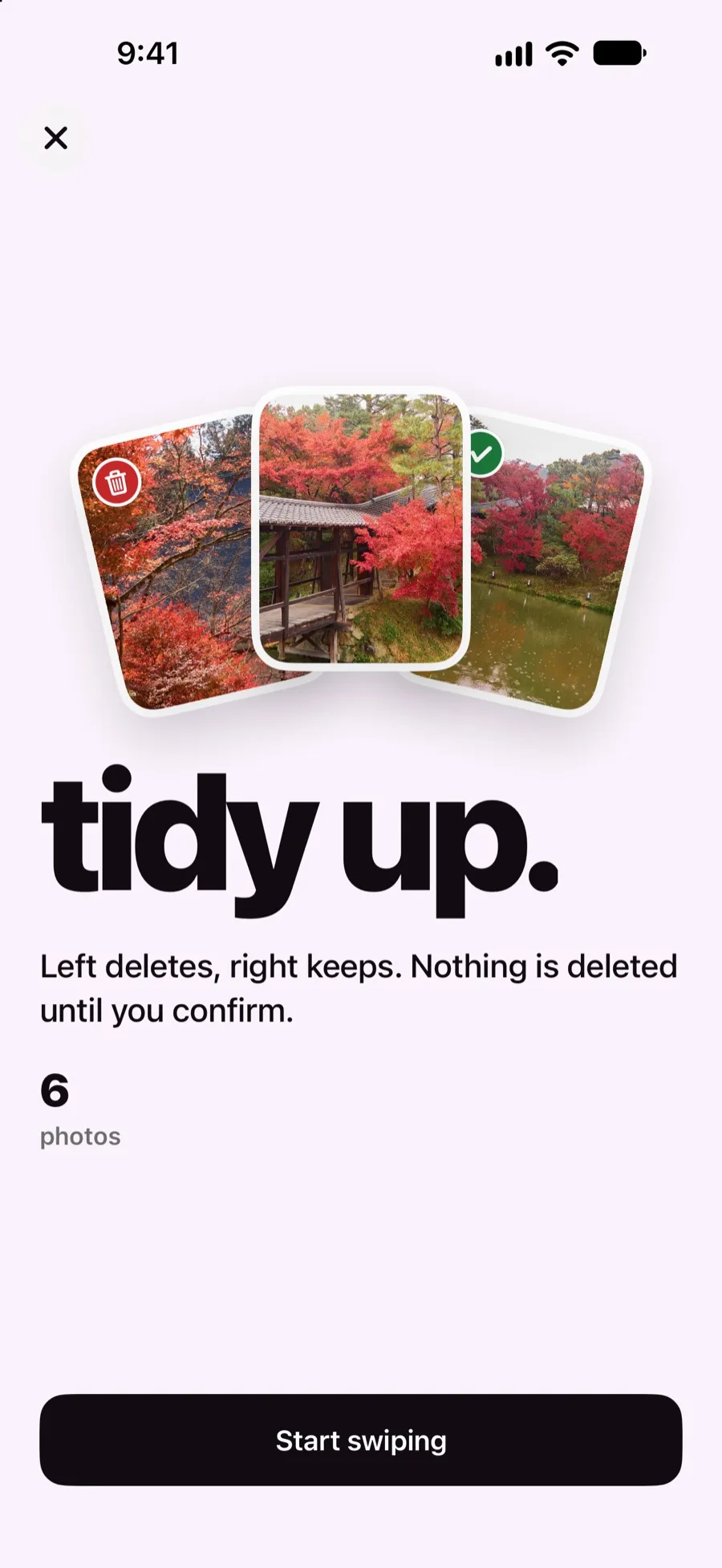
You swipe a photo left to delete and right to keep. Near-identical shots are flagged, and you can compare two side by side before you choose. Nothing is deleted until you confirm, and deleted photos go to Recently Deleted in Photos like any other. Everything runs on your iPhone with no account and no upload.
The free version of Photo Feed does not delete photos at all, so you can browse your newest photos, stories and map without paying; deleting, adding to albums and swipe to tidy sit behind Pro, which you can buy monthly, yearly or once. If you only have one afternoon of clutter, the built-in tools above are enough, and that is a fine way to do it.
A small rule that keeps it from coming back
Cull on the same day. When you take a photo of something five times, delete four of them that evening while you still remember which was best. A minute then saves an hour later.


