
You covered a name in a screenshot with a blur and sent it. Is it safe? The honest answer is: it depends on what was under the blur, and a solid black box is the only choice that never depends on anything.
The three common covers work very differently, and the difference matters most when what you hide is text.
What each effect does to the pixels
Blackout replaces the area with one solid colour. The original pixels are gone from that region. There is nothing left to analyse, so nothing to recover.
Pixelation (a mosaic) splits the area into a grid of blocks and sets each block to the average colour of the pixels it covered. Detail is thrown away, but each block still carries a trace of what was inside it.
Blur averages each pixel with its neighbours. A strong blur removes a lot, a weak one removes little, and the result is a smooth smear whose strength you are judging by eye.
Pixelation and blur are lossy, not erased. How much survives depends on how strong the effect is, how big the thing underneath was, and how much the viewer already knows about it.
Text is the weak spot
Letters have a limited number of shapes. If someone knows or can guess the font, the size and roughly what kind of text it is, they can render candidate letters, apply the same pixelation, and keep the ones that match your blocks.
Security researchers have shown this works. Bishop Fox published Unredacter, a tool that reconstructs pixelated text this way, and their advice is plain: use black bars, and nothing else. JUMPSEC tested an earlier tool, Depix, and found it needed specific conditions to work: their write-up failed to recover their own sample, and still recommends a fully opaque box. Optiv’s account of solving a related challenge involved blurred rather than pixelated text and ends with the same recommendation.
These attacks are not push-button against every image. A one-off phone number blurred hard in a screenshot is unlikely to be targeted by anyone. But a password, an account number or an address is exactly what a determined person would try, and the cost of using a black box instead is zero.
What to use for what
- Account numbers, passwords, addresses, ID numbers, licence plates, any text: blackout. Cover the whole string with some margin, including the characters at each end.
- Faces of people who must not be identified: blackout if the stakes are real (a child, a witness, someone who asked not to appear). A heavy blur or coarse pixelation is a reasonable choice for casual sharing, where the aim is that friends and strangers cannot tell who it is. Make it strong enough that you cannot recognise the person yourself on a small screen.
- Backgrounds, screens in the distance, things you just do not want to be a focus: blur is fine. Nothing needs to be unrecoverable.
- Anything you are tempted to hide by turning down the effect so it still “looks nice”: use blackout instead.
Two habits help whichever you pick. Cover more than you think you need, since a partial cover leaves letter edges to work with. And do not rely on a semi-transparent marker: partial opacity leaves the original showing through, and on an image saved with layers it can sometimes be removed.
Flatten the result
The cover only counts if it is part of the picture. If an app keeps the edit as a layer or annotation over the original, anyone with the file may be able to lift it. Always export a flat image, and share that copy, not the original.
Cropping is not a safe substitute either. Some editors have kept the cropped-away pixels inside the saved file, so crop first if you like but cover what matters rather than cropping it out.
Doing it in Censor Photo
Censor Photo offers blackout, blur and pixelate as separate styles on the same photo, so you can black out the text and blur a background in one pass. You pick the style when you draw over an area. With Pro you can also apply a style to every face or text region the app detects in one tap; on Free you draw each cover yourself, apart from one detected-face apply per session.
Swirl and Emoji covers (Pro) are for fun, not redaction: treat Swirl like blur and use blackout for anything that must stay hidden.
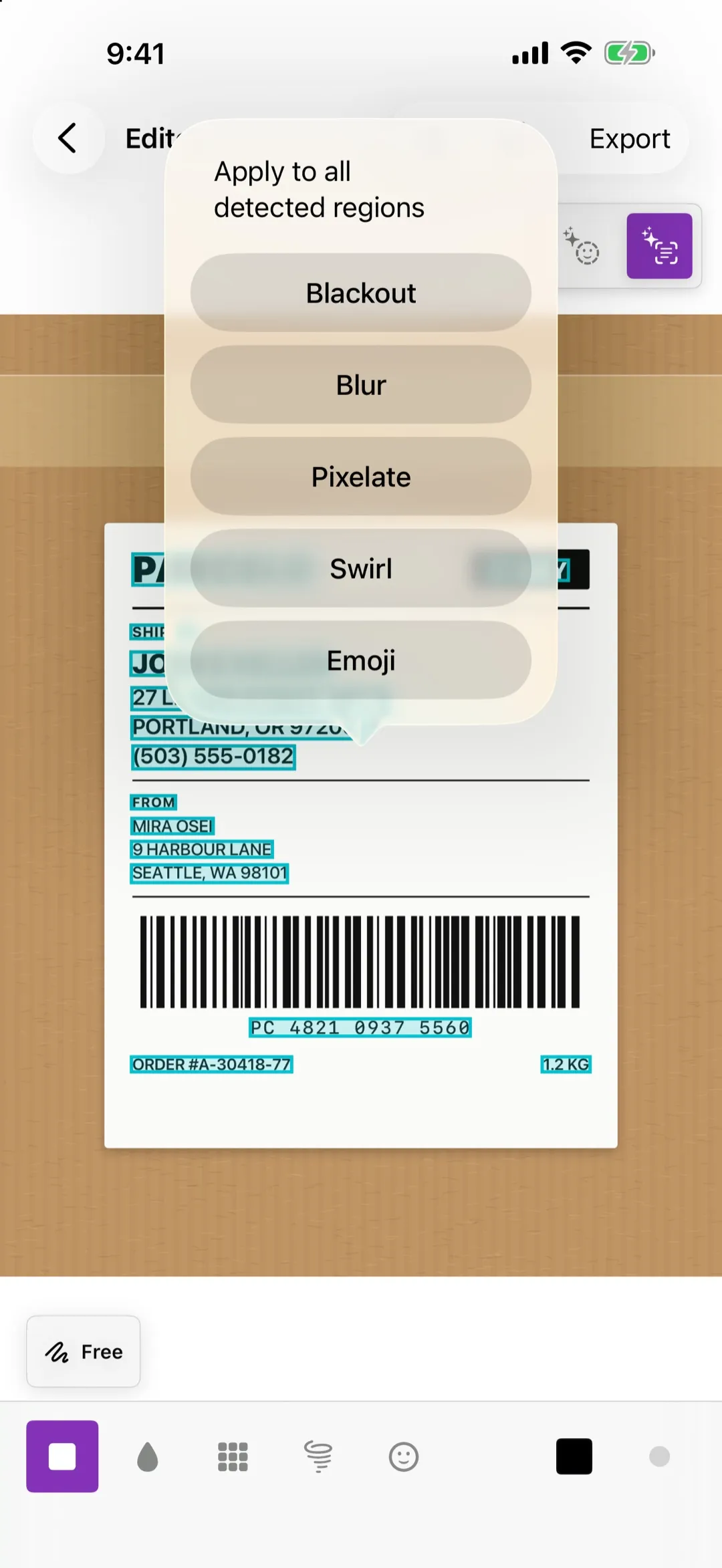
The export is a flattened image, so the cover cannot be moved or removed afterwards. Editing happens on your iPhone and photos are not uploaded. The app is free to use with a limited, watermarked export each week; Pro removes the limit and the watermark.
If you would rather not use an app, the same rules apply in any editor: a solid, fully opaque box over the whole area, exported as a flat image.


